Guides
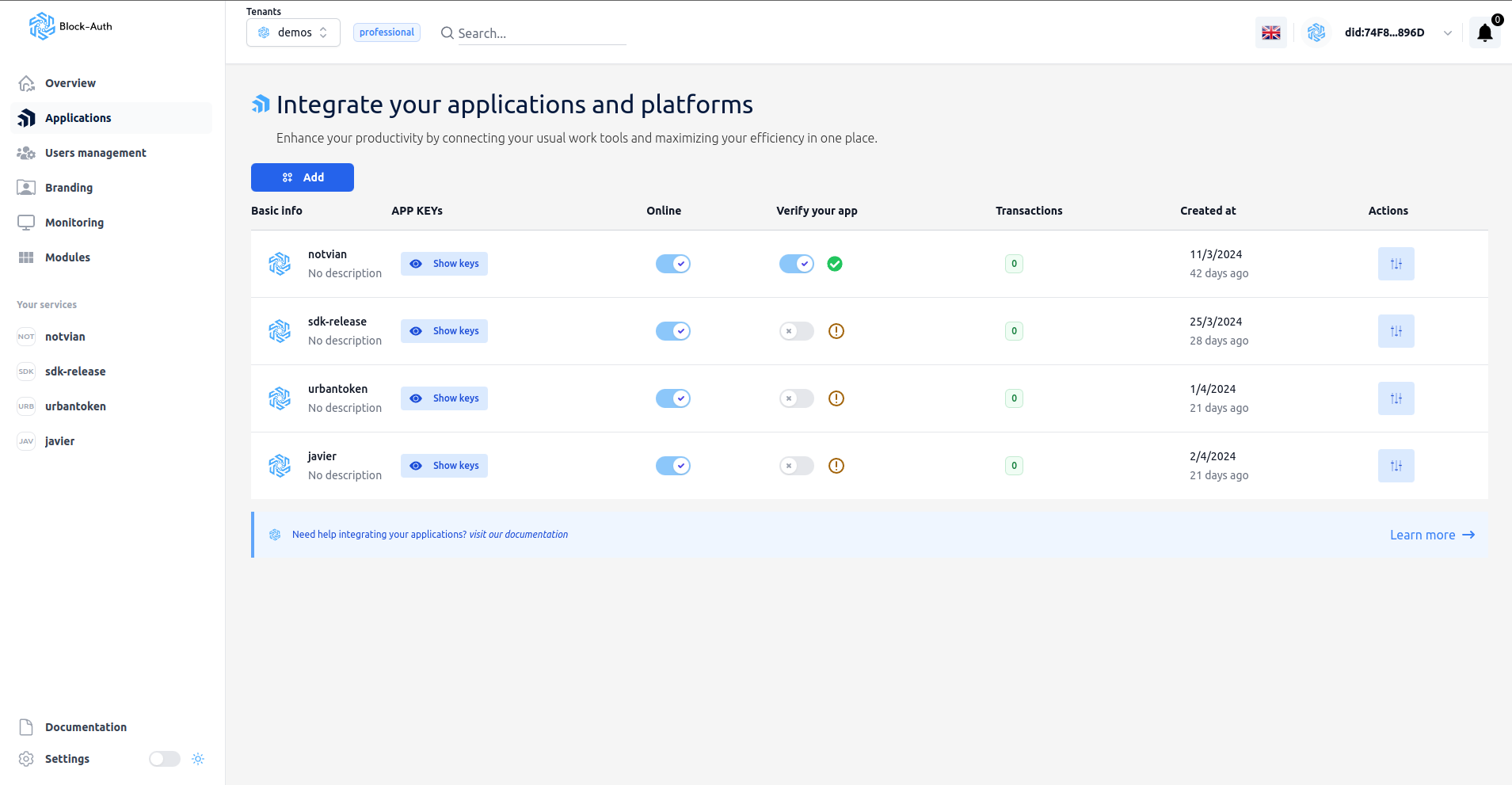
View: Applications
In Applications you see every application you have created, with its basic information. Click an application to see its details.
View: Users management
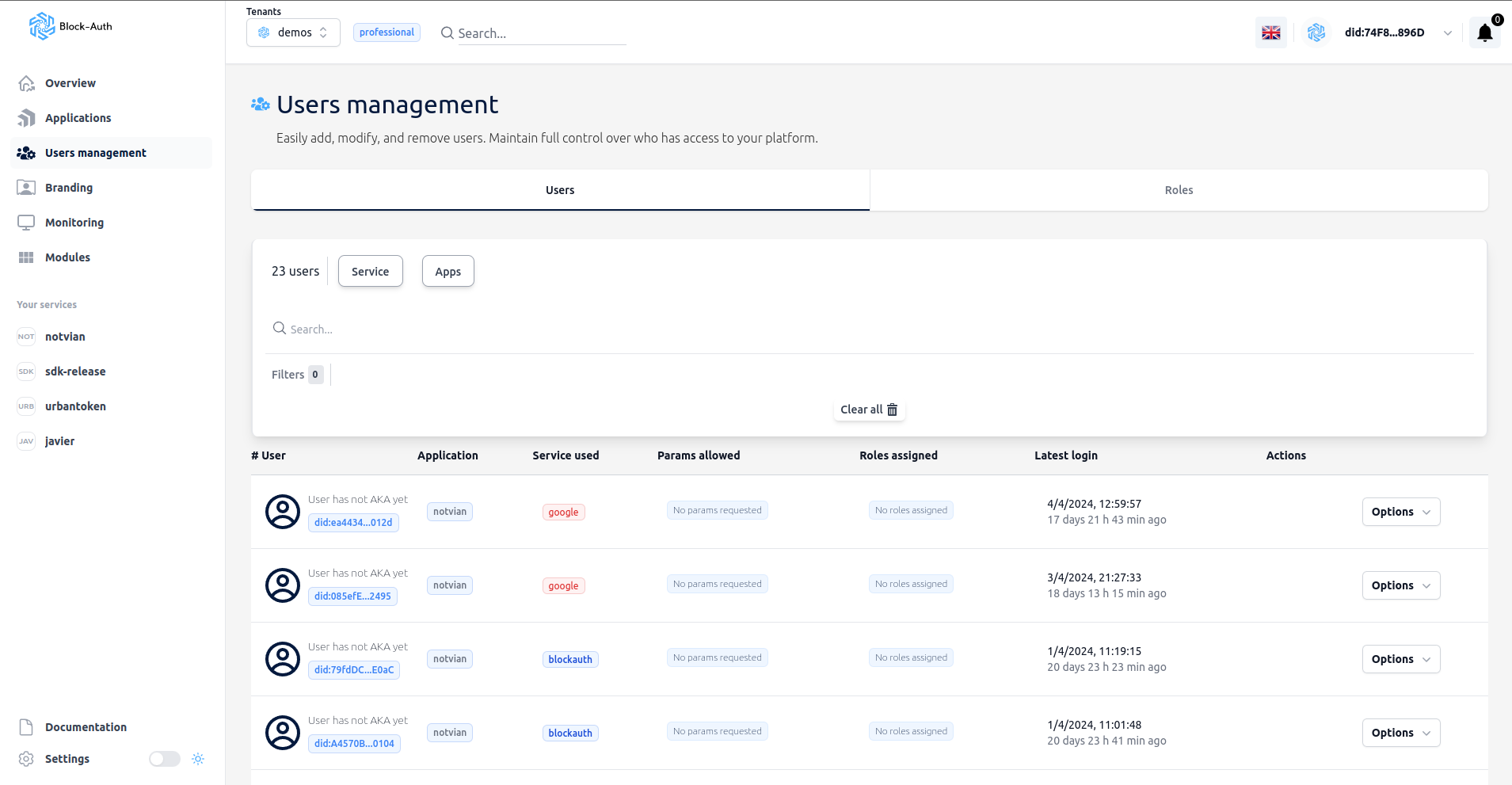
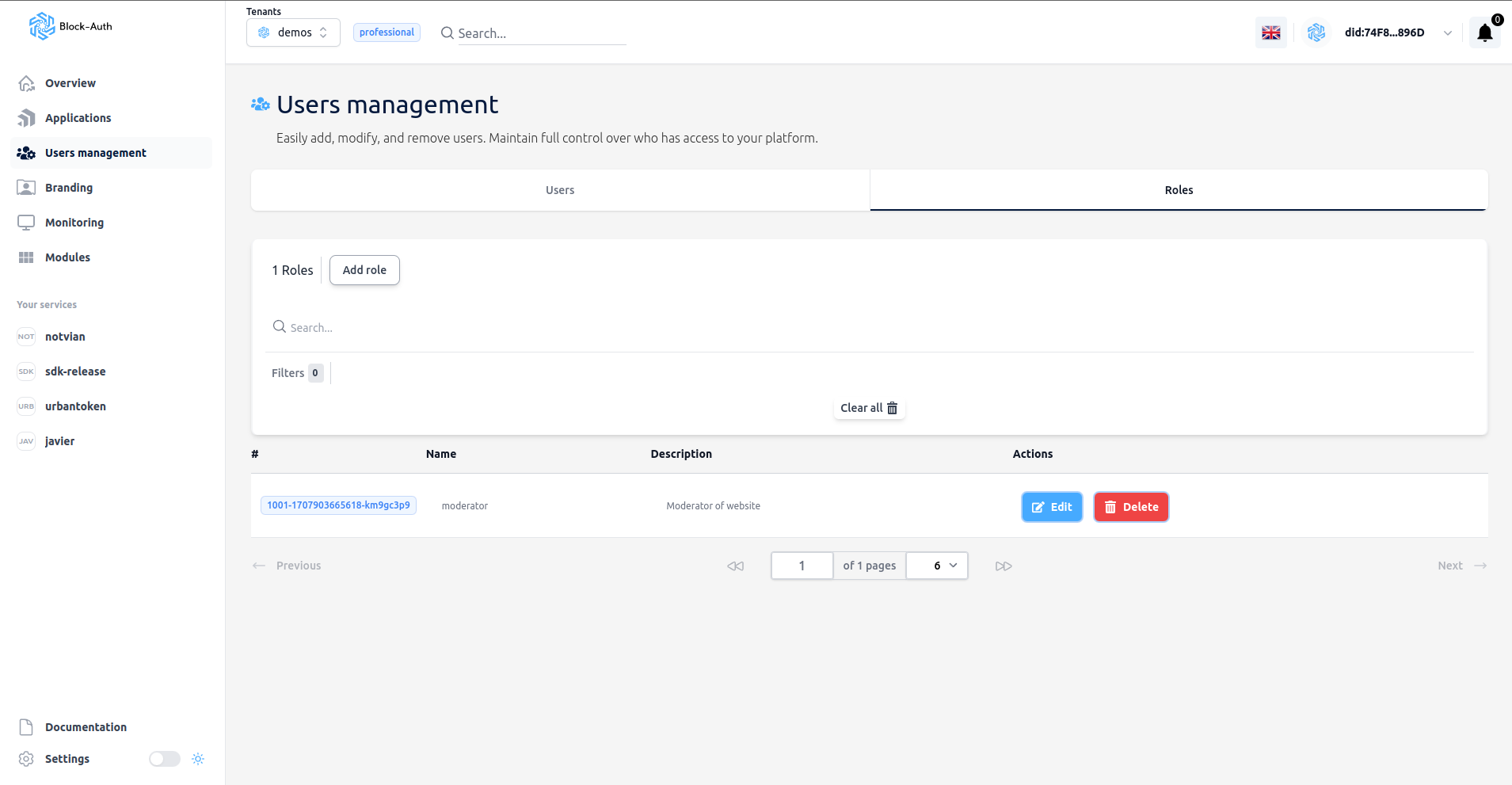
Users management has two tabs: Users and Roles.
Users
In Users you see every user who has signed in to your applications, their details and the roles assigned to them.
Roles
In Roles you see the roles created for your applications, with their slug and description.
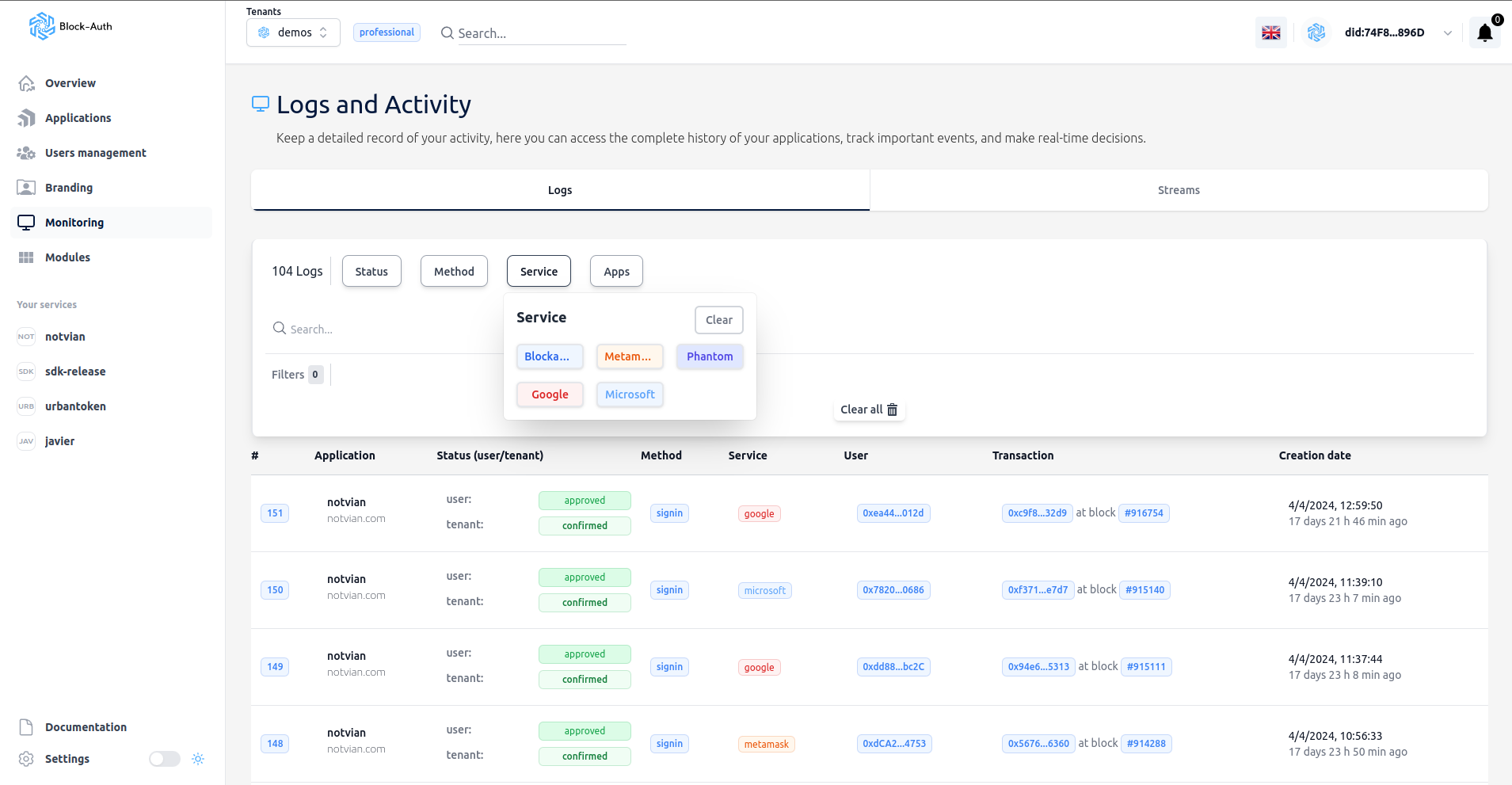
View: Monitoring
Monitoring opens Logs and Activity: the history of your applications' logins and transactions on the Block-Auth blockchain, with the details of each one.
View: Tenant settings
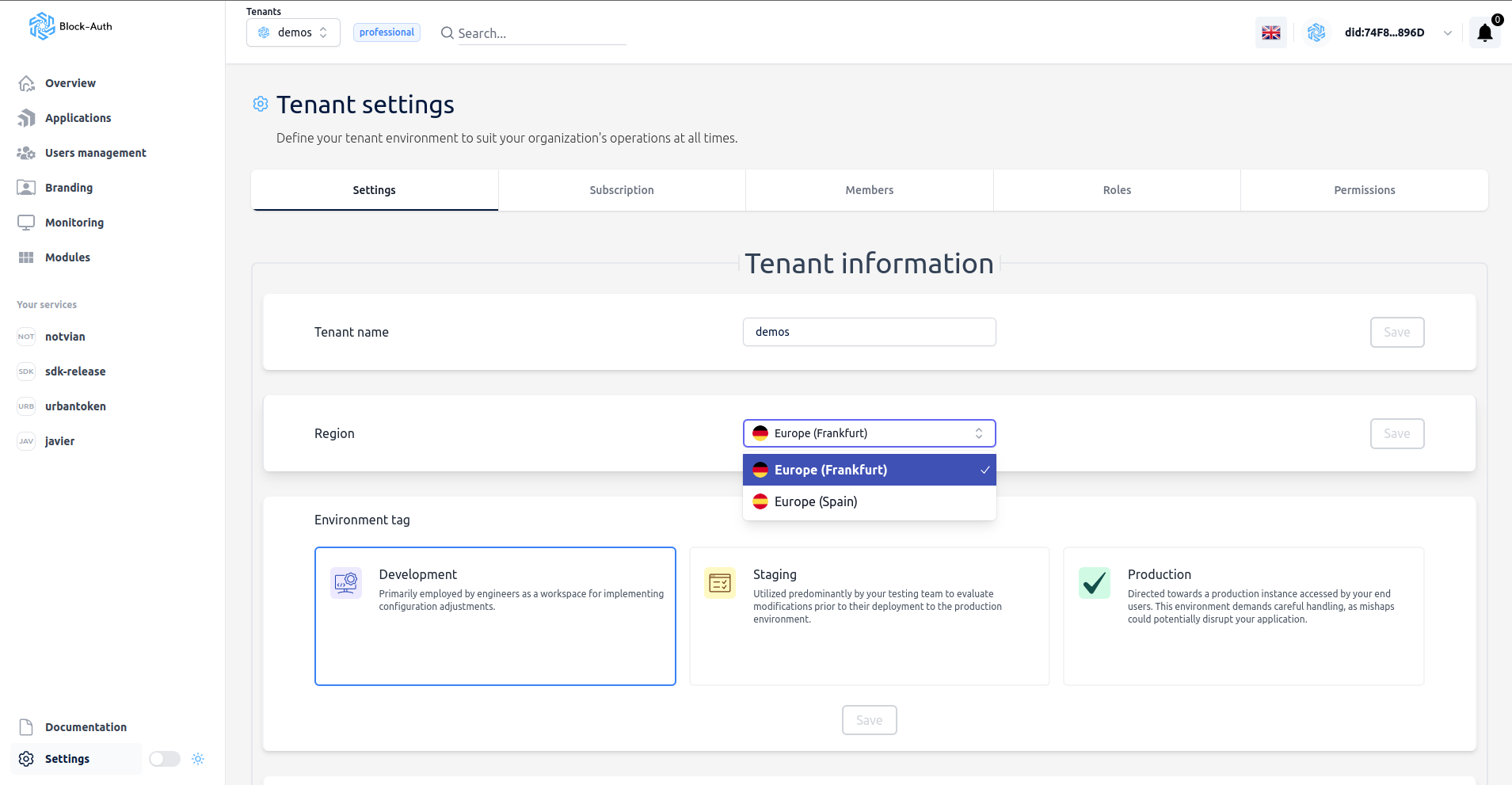
Open Settings from the menu to reach Tenant settings. It has five tabs: Settings, Invoices, Members, Roles and Permissions.
Settings
In Settings you see and edit your tenant's details.
Invoices
In Invoices you see your tenant's invoices.
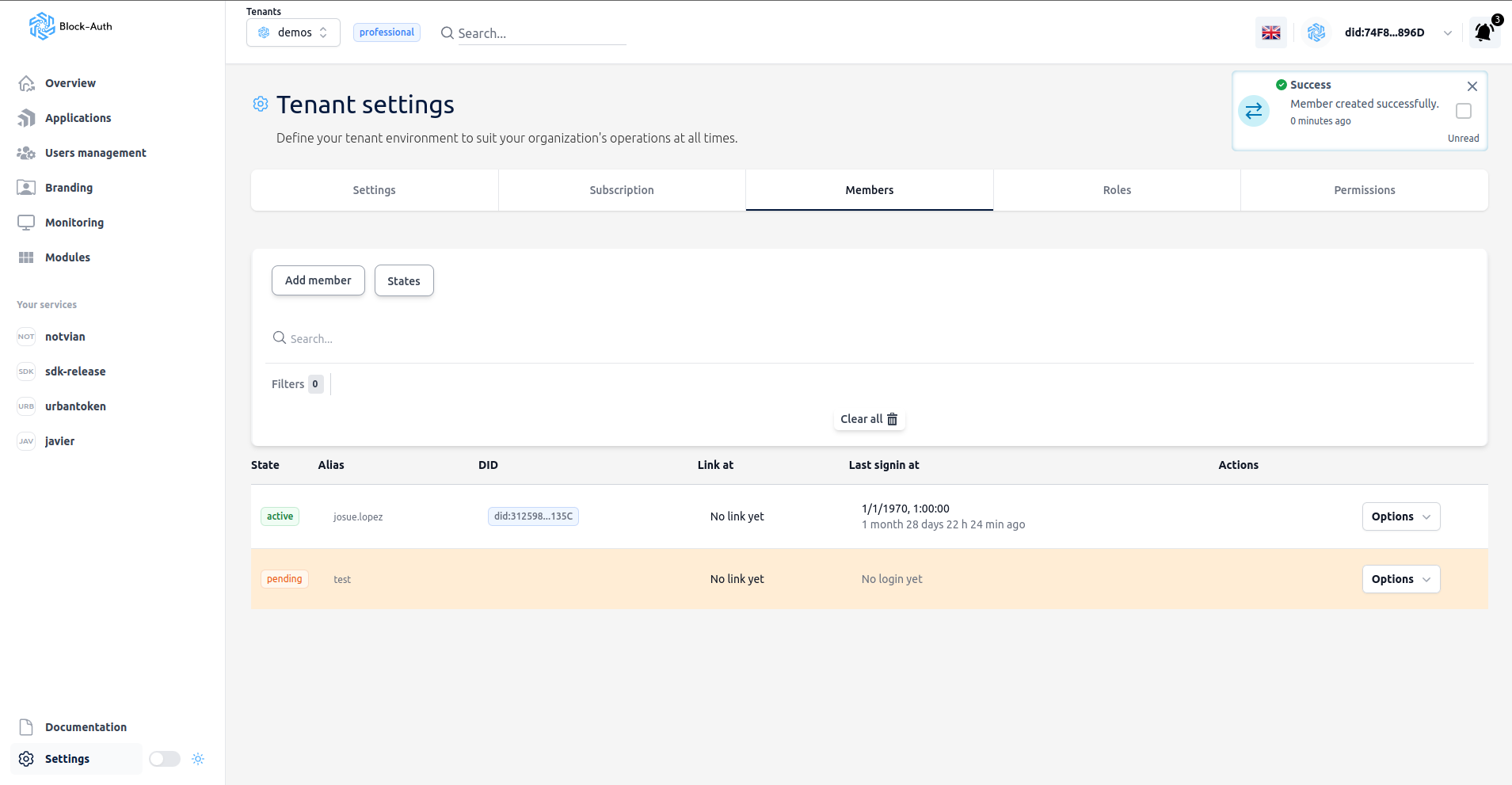
Members
In Members you see the people added to your tenant and their roles.
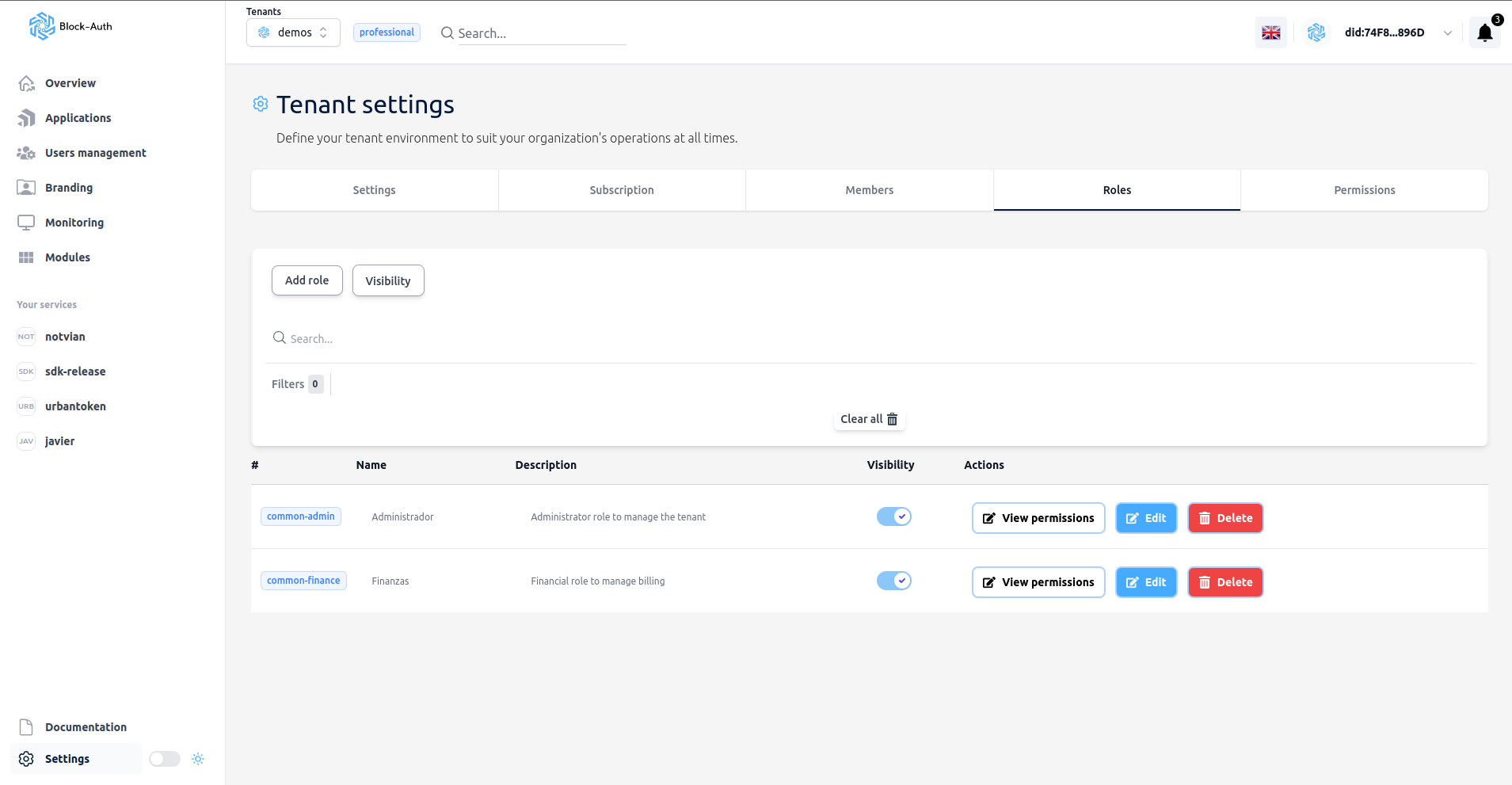
Roles
In Roles you see the roles of your tenant's members. They are not the roles of your app's users, which are in Users management.
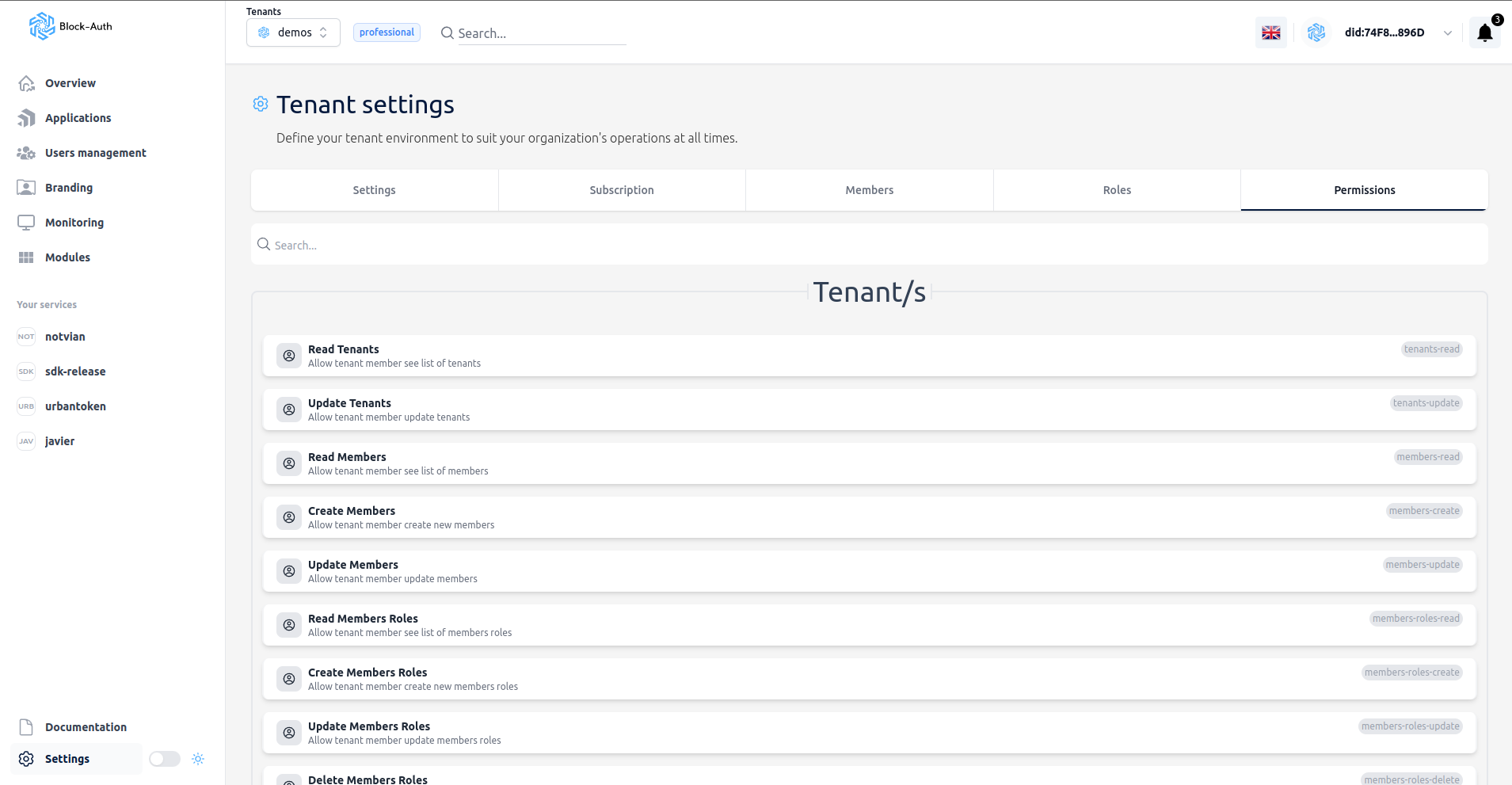
Permissions
In Permissions you see what each member role can do.
View: Add-ons
In Add-ons you see the add-ons you can use in your applications, with their details, and you enable or disable them. Some are free and some are paid, per volume, per user or per request.
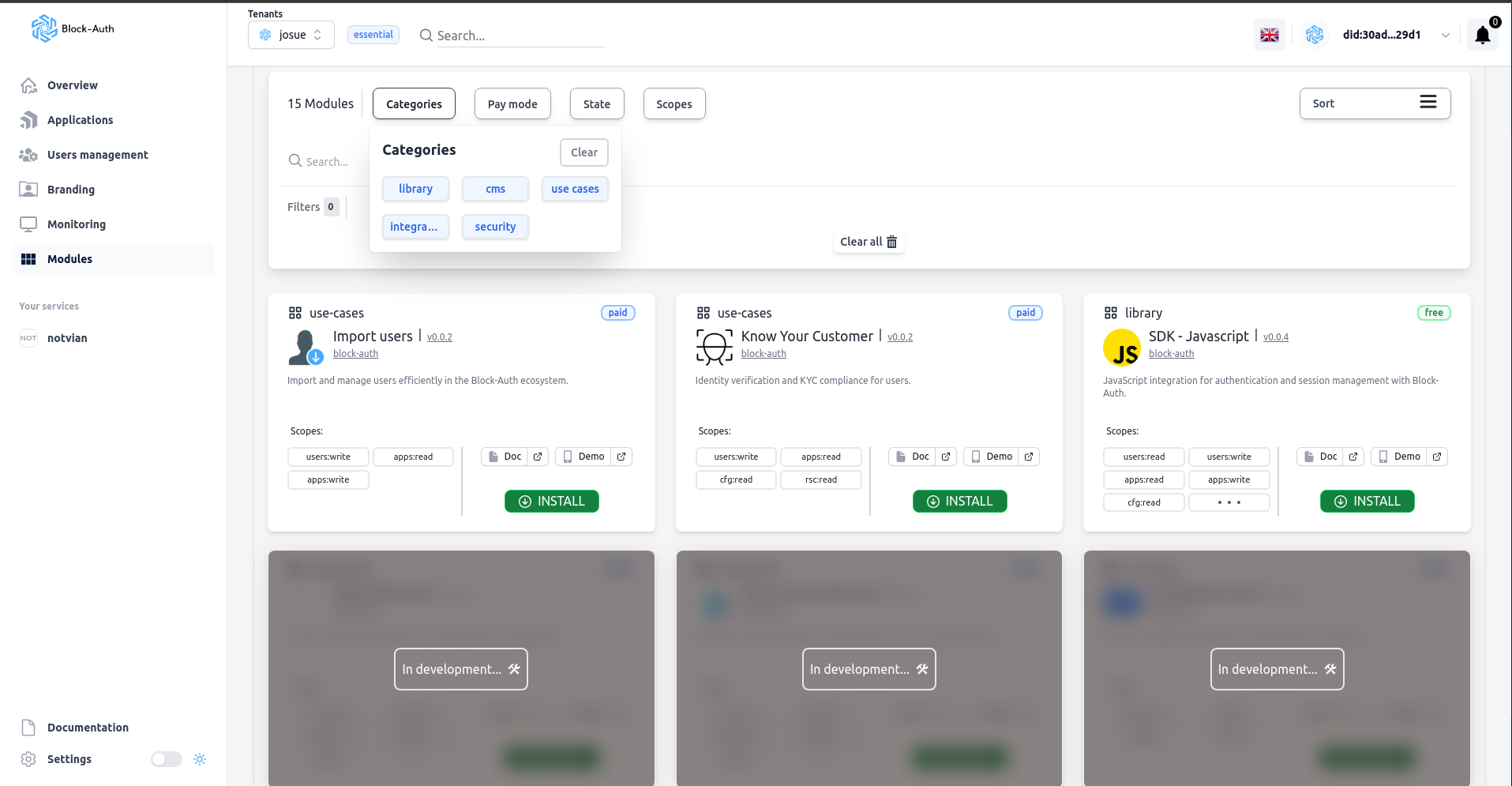
Enable an add-on
Click ENABLE on the add-on. A window opens: if nothing else is needed, the add-on is enabled right away; otherwise, fill in the form it shows.


