
Quickstart
This guide will get you all set up and ready to use the Block-Auth Extension. We'll cover how to create an account and how to use the extension to authenticate and sign transactions.
How to Create an Account
To begin using the BlockAuth ecosystem, you first need to set up your identity through our browser extension. Follow these steps to create your secure decentralized account:
1. Download the extension
Start by downloading the official BlockAuth extension from the Chrome Web Store.
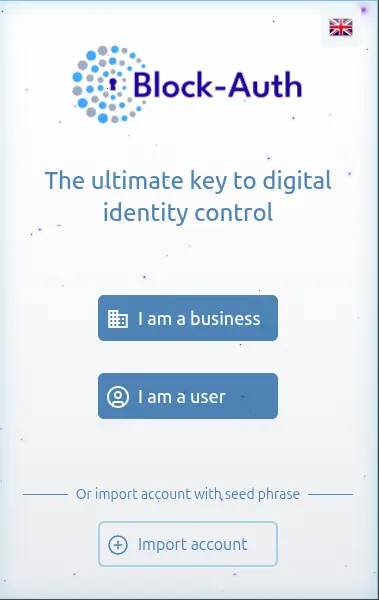
2. Open the extension and select account type
Launch the extension from your browser's toolbar. You will be presented with the account type selection screen. For this integration guide, select "I am a business". This setup ensures you have the appropriate permissions for development and application management.
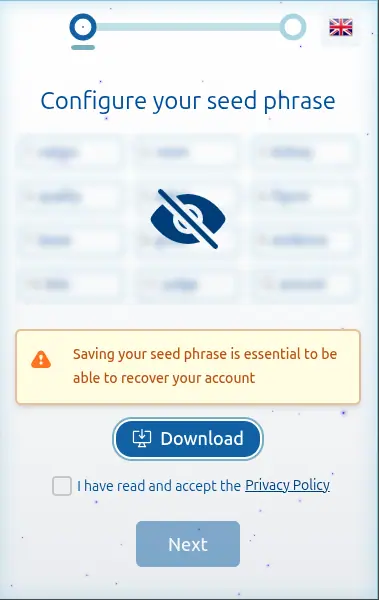
3. Secure your seed phrase
Download and securely store your Seed Phrase. This file is the only way to recover your account if you lose access to your device. Once saved, accept the terms and privacy policy to continue.
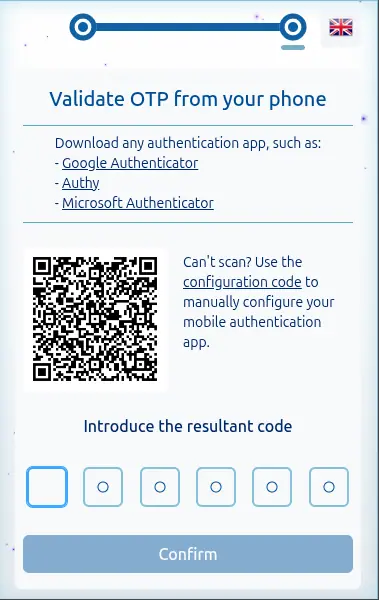
4. Identity validation (OTP)
To add an extra layer of security, you must configure a One-Time Password (OTP) using applications like Google Authenticator, Authy, or Microsoft Authenticator. Scan the QR code with your chosen app and enter the generated 6-digit code.
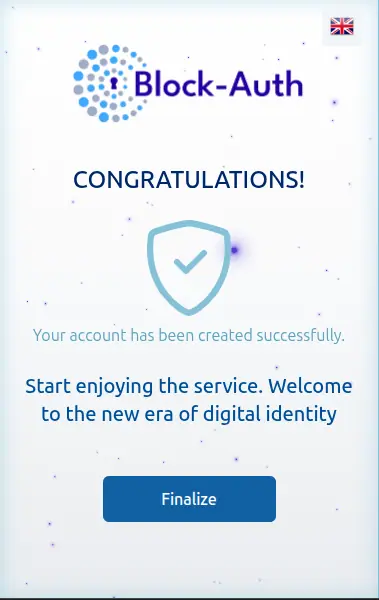
5. Finalize setup
Your account is now ready! Clicking "Finish" will automatically redirect you to BlockAuth Identity. While you can complete your full profile registration there, please note that it is optional for the SDK integration process.