

Roles
This guide shows how to create roles and assign them to users from the Dashboard. Once assigned, you can read those roles in your app with the SDK Roles guide.
Prerequisites
Before you begin, make sure you have:
- A Block-Auth company account (tenant workspace).
- At least one linked and validated application.
If you have not completed this setup yet, follow the Integration Quickstart first.
1. Create a role
Open Users management in the sidebar and select the Roles tab.
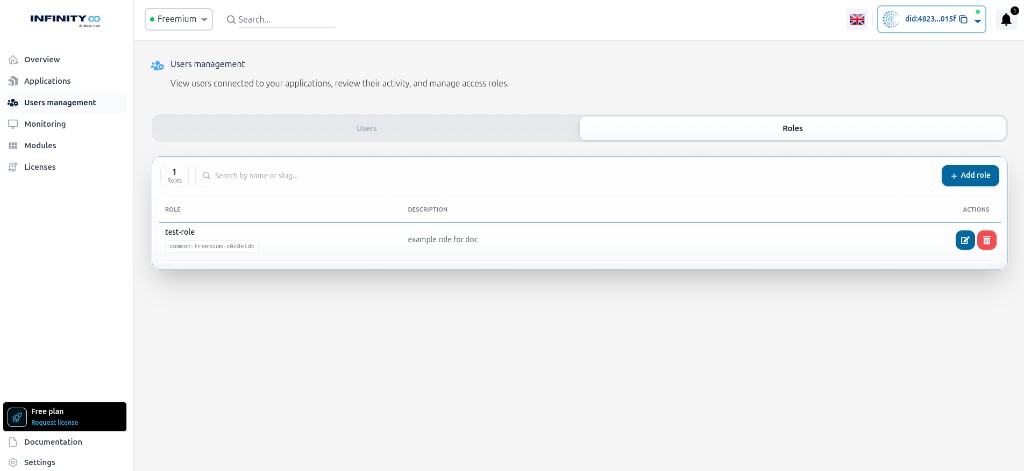
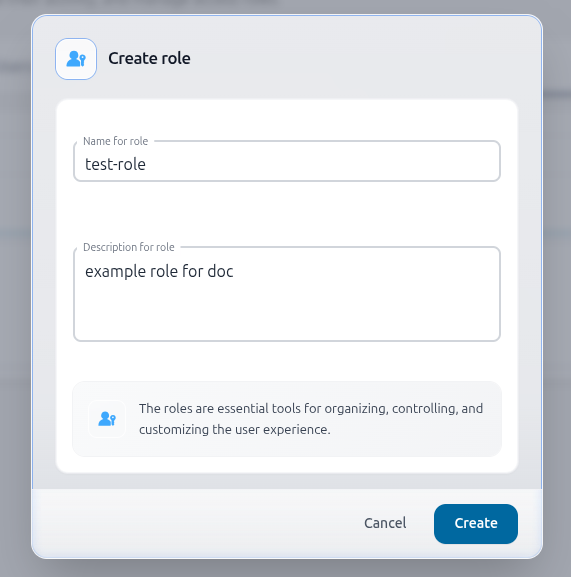
Click + Add role, enter a name and an optional description, then click Create.
The name is the identifier you will use in code — for example, hasRole('test-role') in the SDK. Choose a short, clear name and keep it consistent across your tenant.
2. Assign a role to a user
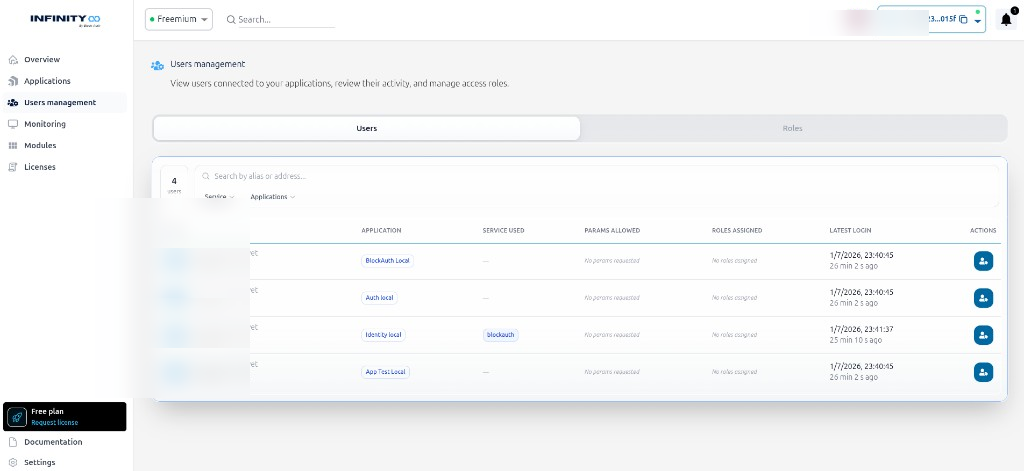
Switch to the Users tab. Find the user you want to update and click the assign role button in the Actions column.
In the modal, select the role you want to assign and click Assign.
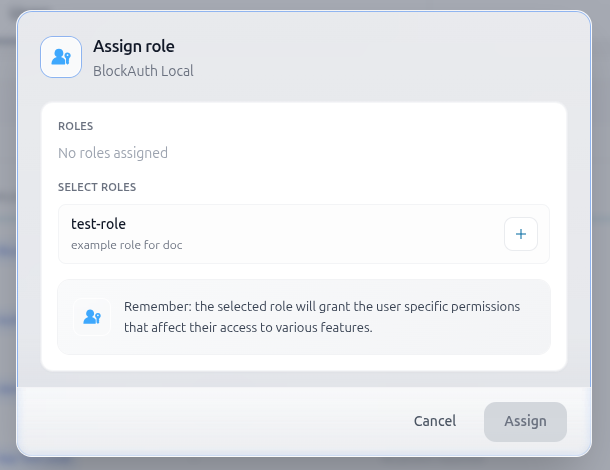
The user will receive the assigned role on their next sign-in. To use roles in your application code, continue with SDK Roles.